
Connect Hostify with Valentia in 3 simple steps.
A quick setup guide to link your Hostify account so Valentia can power your automatic reports and analytics. Available in four languages below.
Cómo conectar Hostify con Valentia
Esta guía te explica cómo conectar tu cuenta de Hostify con Valentia Software para empezar a beneficiarte de todos nuestros informes y análisis automáticos.
-
1
Localiza tu API Key en Hostify
Accede a tu cuenta de Hostify y navega a Settings (Ajustes). Al final de la página encontrarás el campo API Key, tal como se muestra en la imagen.
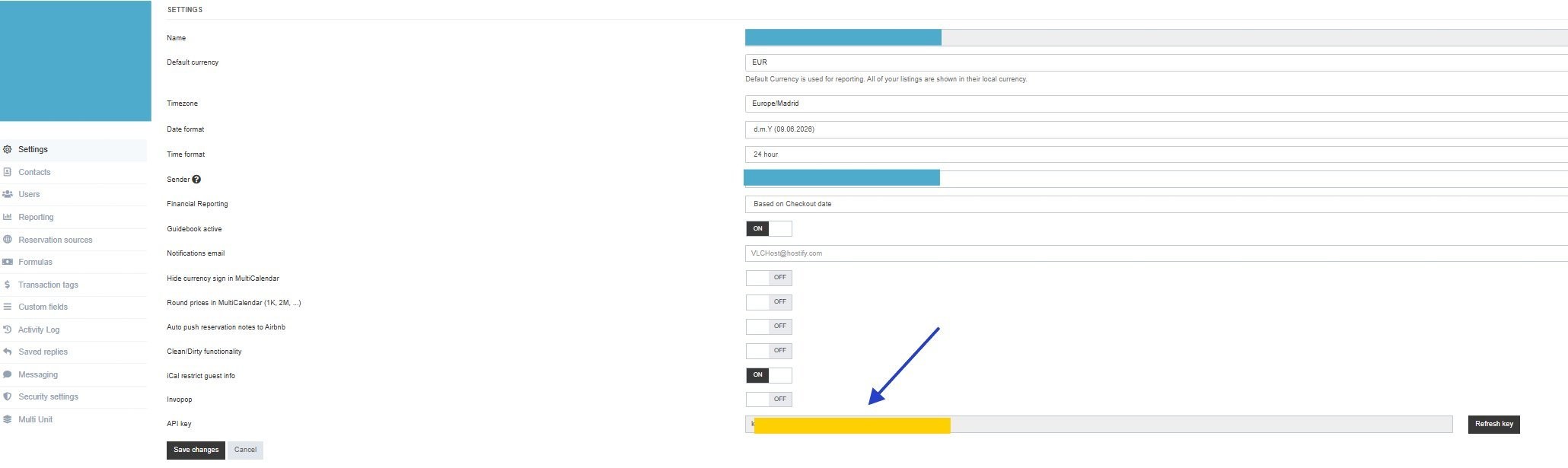
Hostify → Settings → campo API Key -
2
Envíanos tu API Key
Copia tu API Key completa y envíanosla por el canal que hayas acordado con nuestro equipo (email, WhatsApp o ticket de soporte). Nuestro equipo configurará la conexión en menos de 24 horas.
-
3
Accede a la plataforma
Una vez hayamos activado tu acceso, podrás iniciar sesión en Valentia Software con las credenciales que te proporcionaremos:
app.valentiasoftware.com →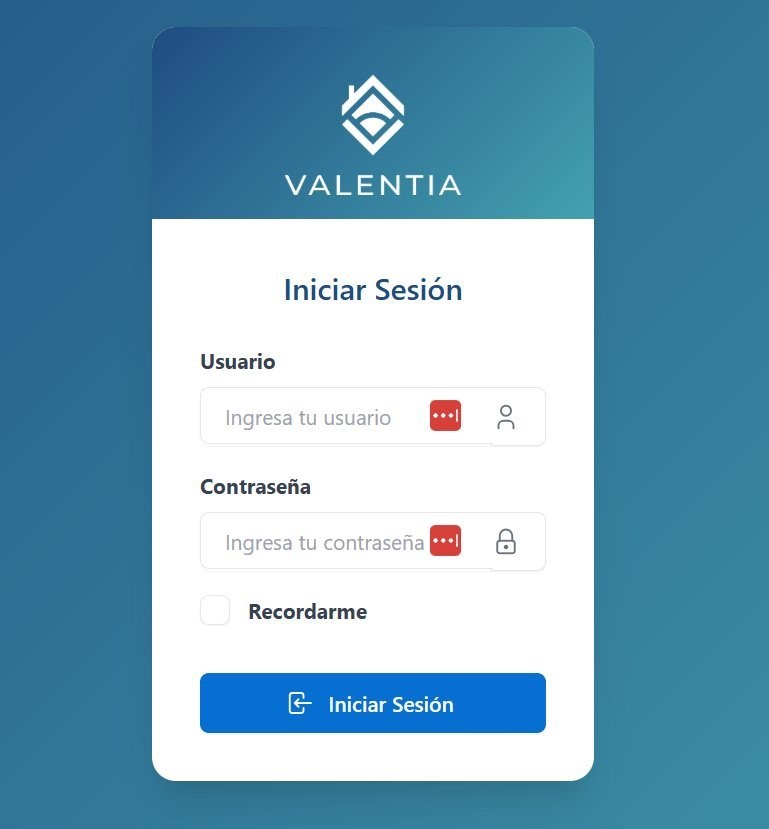
Inicio de sesión en Valentia Software
¿Necesitas ayuda? Escríbenos a soporte@valentiasoftware.com
Comment connecter Hostify à Valentia
Ce guide vous explique comment connecter votre compte Hostify à Valentia Software pour profiter de tous nos rapports et analyses automatiques.
-
1
Trouvez votre clé API dans Hostify
Connectez-vous à votre compte Hostify et accédez à Settings (Paramètres). En bas de la page, vous trouverez le champ API Key, comme indiqué dans l'image.
Hostify → Settings → champ API Key -
2
Envoyez-nous votre clé API
Copiez votre clé API complète et envoyez-la nous via le canal convenu avec notre équipe (email, WhatsApp ou ticket de support). Notre équipe configurera la connexion en moins de 24 heures.
-
3
Accédez à la plateforme
Une fois votre accès activé, vous pourrez vous connecter à Valentia Software avec les identifiants que nous vous fournirons :
app.valentiasoftware.com →
Connexion à Valentia Software
Besoin d'aide ? Contactez-nous à support@valentiasoftware.com
How to connect Hostify with Valentia
This guide explains how to connect your Hostify account to Valentia Software so you can start benefiting from all our automatic reports and analytics.
-
1
Find your API Key in Hostify
Log in to your Hostify account and go to Settings. At the bottom of the page you will find the API Key field, as shown in the image.
Hostify → Settings → API Key field -
2
Send us your API Key
Copy your full API Key and send it to us via the channel agreed with our team (email, WhatsApp or support ticket). Our team will set up the connection within 24 hours.
-
3
Access the platform
Once we have activated your access, you can log in to Valentia Software with the credentials we will provide:
app.valentiasoftware.com →
Valentia Software login
Need help? Contact us at support@valentiasoftware.com
Hostify mit Valentia verbinden
Diese Anleitung erklärt, wie Sie Ihr Hostify-Konto mit Valentia Software verbinden, um von all unseren automatischen Berichten und Analysen zu profitieren.
-
1
API-Key in Hostify finden
Melden Sie sich in Ihrem Hostify-Konto an und gehen Sie zu Settings (Einstellungen). Am Ende der Seite finden Sie das Feld API Key, wie im Bild gezeigt.
Hostify → Settings → API-Key-Feld -
2
API-Key an uns senden
Kopieren Sie Ihren vollständigen API-Key und senden Sie ihn uns über den mit unserem Team vereinbarten Kanal (E-Mail, WhatsApp oder Support-Ticket). Unser Team richtet die Verbindung innerhalb von 24 Stunden ein.
-
3
Zugang zur Plattform
Sobald wir Ihren Zugang aktiviert haben, können Sie sich mit den von uns bereitgestellten Zugangsdaten bei Valentia Software anmelden:
app.valentiasoftware.com →
Anmeldung bei Valentia Software
Benötigen Sie Hilfe? Kontaktieren Sie uns unter support@valentiasoftware.com
Ready to connect your account?
Our team sets up the integration in under 24 hours.